
Connecting a Dash Cam to Your Phone’s Hotspot
The main purpose of connecting a dash cam to your phone’s hotspot is to give the dash cam internet access, enabling remote viewing or online features. The core of this process is to make the dash cam “actively” connect to the Wi-Fi signal broadcast by your phone. Below are detailed steps and important notes.
Connection Process Overview
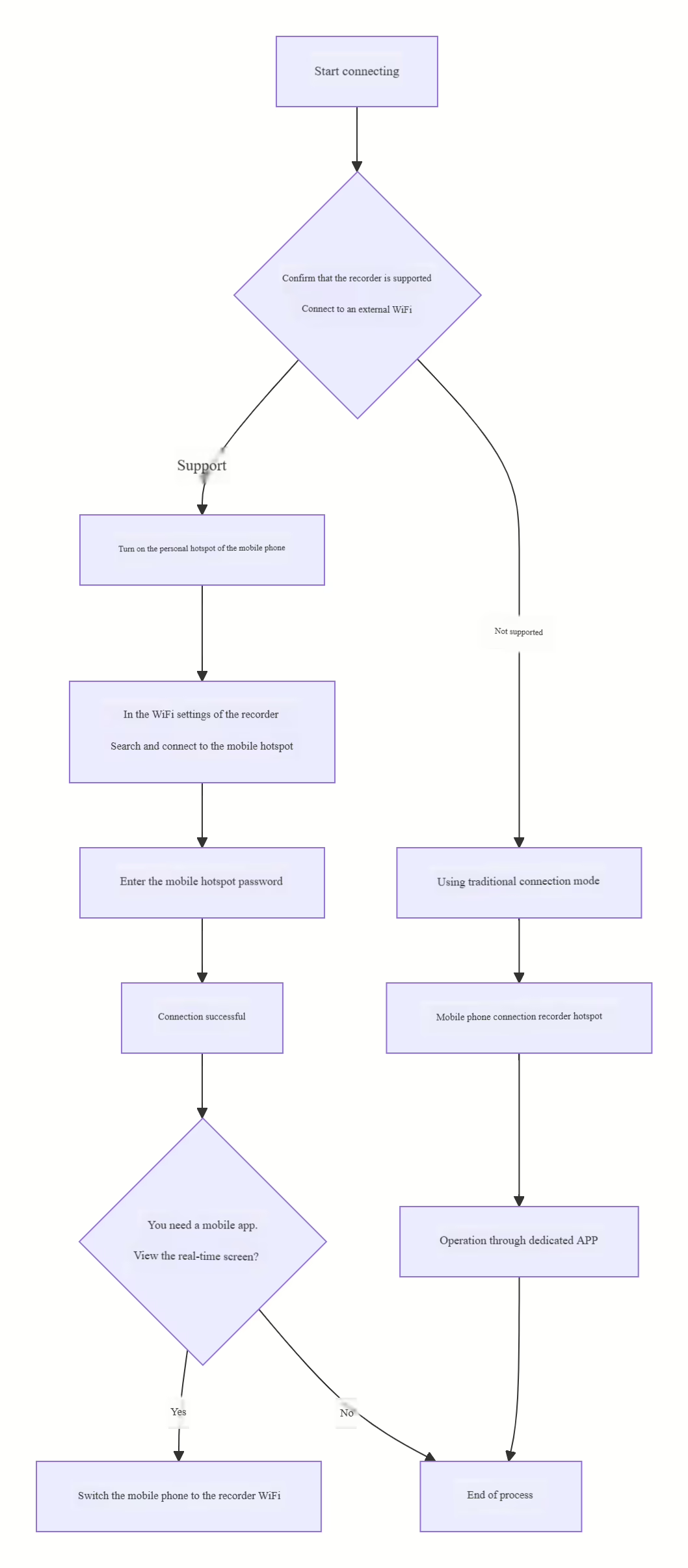
First, you can quickly grasp the key steps of the entire connection process through the following flowchart:
Detailed Operation Steps
- Enable Phone Hotspot: Go to your phone’s “Settings” menu, find the “Personal Hotspot” or “Network Sharing” option, and enable the hotspot function. It is recommended to set a secure password.
- Connect Dash Cam to Hotspot: In your dash cam’s settings menu, find the “Wi-Fi Settings” or “Network Connection” option. From the list of available networks, select your phone’s hotspot name, then enter the password to complete the connection. A prompt usually appears on the dash cam screen upon successful connection.
- Use Phone App for Viewing (If Needed): After the above steps, the dash cam is connected to the internet. However, if you want to use the phone app to view the live feed or download videos, you now need to connect your phone to the Wi-Fi hotspot emitted by the dash cam itself (this is a different mode and doesn’t conflict with step 1). Then, open the corresponding dedicated app to operate.
Important Notes
- Confirm Feature Support: Not all dash cams support connecting to external Wi-Fi networks (like a phone hotspot). Please carefully consult the product manual to confirm if your dash cam has this feature.
- Mind Signal Strength and Data Usage: Connection stability depends on your phone’s signal strength. It may drop in areas with weak signal. Also, if the dash cam needs to upload videos or perform online updates, it will consume your mobile data. Please monitor your data plan balance.
- Understand the Connection Logic: Clarify a key point: When the dash cam is connected to your phone’s hotspot, your phone itself typically cannot simultaneously use mobile data to access the internet. This is because the phone’s Wi-Fi function is occupied while acting as a hotspot.
The Difference Between the Two Modes
For clearer understanding, remember these two distinct connection modes:
- Mode 1: Dash cam connects to phone’s hotspot → The purpose is to provide internet access for the dash cam, enabling online features like remote viewing or cloud storage.
- Mode 2: Phone connects to dash cam’s hotspot → The purpose is to enable local communication between the phone app and the dash cam for live preview, video playback, changing settings, etc. This is the more common and basic operation.